Table of contents
- What is Chrome Remote Desktop
- How Chrome Remote Desktop works
- Installing Chrome Remote Desktop step by step
- Connecting and sharing your screen
- Advanced features for IT professionals
- Security and privacy of remote access
- Advantages and limitations of Chrome Remote Desktop
- When to use Chrome Remote Desktop
Have you ever needed to access your computer while away from the office or help a colleague with a technical issue remotely? Until a few years ago, managing remote desktop access required complex tools, VPN configurations, or paid software.
Today, thanks to Chrome Remote Desktop, everything has become much simpler and safer, directly integrated into the Chrome browser and accessible to anyone with a Google account.
In this complete guide, we’ll explore how Chrome Remote Desktop works, how to install the extension, configure remote connections, share your screen, and manage remote sessions for work or technical support. We’ll also analyze its main advanced features, data security, and common use cases for IT professionals, businesses, and individual users.
What is Chrome Remote Desktop
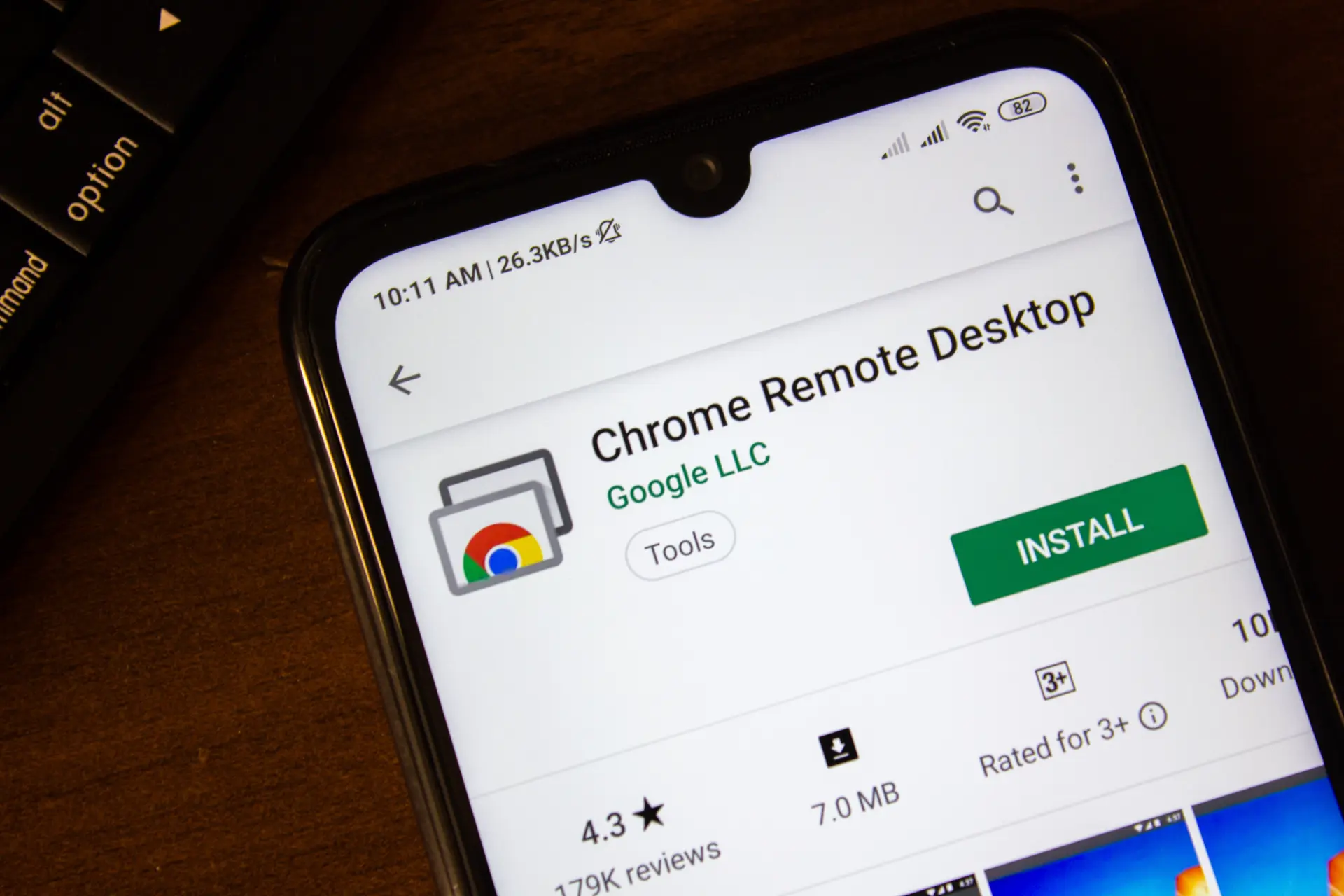
Chrome Remote Desktop is a free Google service that allows you to access a computer remotely using the Chrome browser or a dedicated mobile app. In practice, it lets you control another device (Windows, macOS, or Linux) as if you were physically sitting in front of it.
It works through an end-to-end encrypted connection that ensures secure remote access, reducing the risk of interception or data breaches. Its interface is simple but effective: with just a few clicks, you can connect without complex configurations or advanced technical skills.
This tool is ideal for remote workers, IT professionals offering remote assistance to clients, or anyone who wants to view files and programs from another device.
How Chrome Remote Desktop works
To understand how Chrome Remote Desktop works, it helps to start with its basic principle: the remote connection between two devices takes place via Google’s servers, using a unique code or a personal PIN.
Here are the essential steps of the workflow:
- Install the extension from the Chrome Web Store.
- Add the “Chrome Remote Desktop” extension to your browser, available for all major operating systems.
- Sign in with your Google account.
- To ensure security and user verification, access is allowed only through a Google account.
- Configure remote access.
- Assign a name to the computer and set a PIN of at least six digits, required for each connection.
- Connect to the remote device.
- From another PC, go to remotedesktop.google.com, select the configured computer, and enter the PIN to start the session.
The main advantage is simplicity: there’s no need to open network ports, modify firewalls, or install complex software. Everything runs inside the Chrome browser, with stable performance and low latency even on average connections.
Installing Chrome Remote Desktop step by step
It only takes a few minutes to install the Chrome Remote Desktop extension:
- Open the Chrome Web Store and search for “Chrome Remote Desktop.”
- Click Add to Chrome and confirm the installation.
- Visit remotedesktop.google.com.
- Under “Access your computer,” select “Set up remote access.”
- Download and install the host component for your operating system (Windows, macOS, or Linux).
- Set up a security PIN – you’ll need it each time you connect.
- Your computer is now ready to be reached from another device.
Once setup is complete, the computer will remain available even after restarting, as long as it’s powered on and connected to the Internet.
You can also manage access via Android or iOS smartphones and tablets using the free Chrome Remote Desktop app, available on Google Play and the App Store.
Connecting and sharing your screen
After configuring the system, you can start a remote session in just seconds.
Simply go to remotedesktop.google.com, select the desired device, and enter your security PIN.
During the connection, you can:
- Control the mouse and keyboard of the remote computer
- Share your screen with another user for remote support sessions
- Transfer files via drag and drop
- Adjust resolution or adapt the window to your local screen size
This feature is perfect for troubleshooting, giving presentations, or assisting a colleague remotely. All remote connections are encrypted and logged, and the user can terminate the session at any time.
Advanced features for IT professionals
Although Chrome Remote Desktop started as a consumer tool, in recent years it has added advanced features that make it suitable for IT professionals and business teams.
Among the most appreciated functions:
- Manage multiple remote sessions simultaneously useful for tech support across several workstations;
- Temporary screen sharing via unique links, ideal for providing remote assistance to clients or coworkers without extra setup;
- Multi-monitor compatibility, with the option to choose which screen to display;
- 256-bit encryption for every session;
- Access from the Chrome browser without extra software, thanks to built-in WebRTC support.
For small and medium-sized IT departments, this means offering fast, free remote assistance, reducing license and maintenance costs.
Security and privacy of remote access
One of the most important aspects of Chrome Remote Desktop is its security. Google has integrated authentication and encryption systems to ensure that only authorized users can access the remote device.
Here’s how Chrome Remote Desktop uses protection technologies:
- Authentication via Google Account, requiring two-factor verification if enabled;
- Personal PIN, necessary to establish the connection;
- End-to-end encryption, protecting data transmitted during the session;
- Explicit authorization required from the remote user when sharing the screen.
Additionally, no session data is stored on Google’s servers: connections occur in real time and are automatically closed once finished.
This approach guarantees secure remote access even in business environments with strict privacy requirements.
Advantages and limitations of Chrome Remote Desktop
Like any tool, Remote Desktop Chrome has its strengths and weaknesses.
Main advantages:
- Easy setup and use;
- Cross-platform compatibility (Windows, macOS, Linux, Android, iOS);
- Smooth performance even on slower networks;
- No license or subscription costs;
- Integrated security through Google accounts.
Limitations:
- No advanced file management or in-session chat;
- No remote printing (feature still limited);
- Requires a stable Internet connection;
- No direct integration with IT ticketing or monitoring tools.
Still, for most users and companies, Chrome Remote Desktop strikes the perfect balance between simplicity, security, and functionality.
When to use Chrome Remote Desktop
Using Chrome Remote Desktop can suit various real-world scenarios:
- Remote work
Access your office PC from home and keep working seamlessly. - Remote support
For IT technicians who need to fix issues on clients’ or colleagues’ computers. - Online teaching
For teachers or tutors who want to show exercises or software in real time. - Server or virtual machine management
Useful for quickly monitoring remote systems. - Access to personal files
When you need a document stored on your main computer.
Its versatility and cross-platform compatibility make it an indispensable tool for anyone looking to improve their daily workflow.
In summary
In an increasingly connected world, the ability to access your devices remotely has become a necessity. Chrome Remote Desktop provides a simple and secure solution for both individuals and professionals, combining everything you need to work or provide remote support without complications.
Whether you’re an IT technician, a freelancer, or a user helping a family member with a technical problem, this free tool allows you to manage remote connections efficiently and securely.
Questions and answers
- What is Chrome Remote Desktop?
It’s a free Google service that lets you access and control a computer remotely via the Chrome browser. - How does Chrome Remote Desktop work?
It relies on an encrypted connection between two devices, authenticated through a Google account and personal PIN. - Do I need extra software?
Only the Chrome Web Store extension and a small host component for remote access. - Can I use it on Mac or Linux?
Yes, it’s compatible with Windows, macOS, and Linux, as well as mobile devices. - Is Chrome Remote Desktop secure?
Yes, thanks to end-to-end encryption and Google’s two-factor authentication. - Can I transfer files during a remote session?
Yes, using drag and drop or browser commands. - Can I share just one window?
No, screen sharing covers the entire remote desktop. - How many remote sessions can I manage?
More than one, depending on system and network capacity. - Do I need a fast connection?
Not necessarily, but a stable one improves the experience. - Is it suitable for business use?
Yes, especially for small companies or IT teams needing efficient remote assistance.
