Table of contents
- Why clearing history is important
- How to delete Google history
- How to clear history on iPhone
- How to clear Safari history (Mac and iPhone)
- Deleting history by browser
- Difference between deleting history and clearing browsing data
- Automatically clearing history
Have you ever wondered how to clear history from your browser or apps? Maybe because you share the device with other people, or because you don’t want traces of your searches to remain. In fact, there are many valid reasons to delete history: from protecting privacy to freeing up space occupied by website data and cookies.
But often, when faced with phone or computer settings, people get confused and end up asking: “how do you delete history quickly and effectively?”
In this guide, you’ll find all the answers: we’ll see how to delete Google history, how to clear history on iPhone, how to remove traces on Safari and other browsers, and the differences between deleting only certain activities or wiping everything at once.
Why clearing history is important
Every time we browse online, the browser records visited sites, cookies, saved passwords, and even filled forms. This allows for a faster browsing experience, but also carries risks. If you don’t periodically delete this information, it can be accessed by other users of the same device or by malicious actors who manage to break into your system.
Moreover, clearing history helps free up internal memory, especially on smartphones that accumulate a lot of cached data. Finally, if you’re wondering, “do you want to delete history only partially?” know that it’s possible: you can select a specific time range, such as “last hour” or “last 7 days.”
How to delete Google history
One of the most common questions is: “how to delete Google history?” That’s because Google saves not only the sites you visit in Chrome but also the searches you perform on any device linked to your Google account.
Here are the steps:
- Go to myactivity.google.com and log in.
- You’ll find a list of recent activities, including the searches performed with your favorite search engine.
- You can delete individual items by clicking the three dots next to them and selecting “Delete.”
- If you want to remove everything, click “Delete activity by” and choose the time range (last hour, last day, all time).
Alternatively, you can act directly from the Chrome browser:
- Open the menu with the three dots in the top right corner.
- Go to “Settings” > “Privacy and security.”
- Select “Clear browsing data.”
- Choose whether to remove history, cookies, cache, and other site data.
How to clear history on iPhone
Another common doubt concerns how to clear history on iPhone. Apple allows you to do it in different ways, depending on the browser you use.
Safari on iPhone
Safari is the default browser for iOS devices. To clear history:
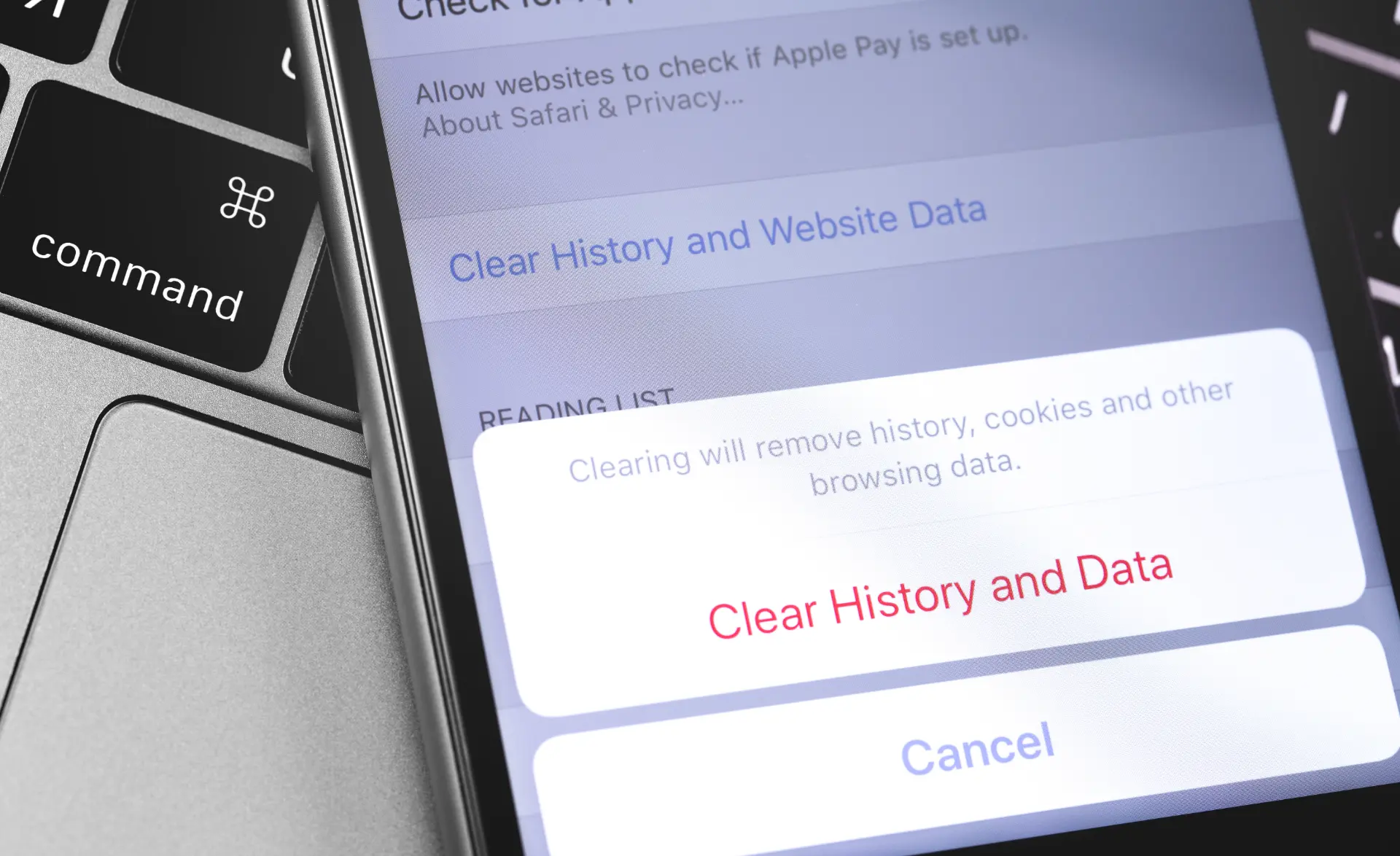
- Go to Settings > Safari.
- Scroll down and select “Clear history and website data.”
- Confirm by choosing “Do you want to clear history and data?”
This will delete both browsing history and cookies along with other temporary files.
Google Chrome on iPhone
If you use Chrome:
- Open the Chrome app.
- Tap the three dots at the bottom right.
- Go to “Settings” > “Privacy.”
- Select “Clear browsing data.”
- Set the time range and choose what to delete (history, cookies, cache).
How to clear Safari history (Mac and iPhone)
Many users ask: “how to clear Safari history?” The procedure differs slightly between Mac and iPhone, but the concept is the same: Safari lets you delete everything or only certain sessions.
On Mac:
- Open Safari.
- From the top menu, click “History.”
- Select “Clear History.”
- Choose the time range (last hour, today, today and yesterday, all time).
This way, you’ll delete not only visited pages but also cookies and form data.
Deleting history by browser
Each browser has its own method to clear saved information. Here are the most common ones:
- Google Chrome: menu > Settings > Privacy > Clear browsing data.
- Mozilla Firefox: menu > History > Clear recent history.
- Microsoft Edge: menu > Settings > Privacy > Clear browsing data.
- Opera: menu > History > Clear browsing data.
In all cases, you’ll find the option to choose the time range and whether to delete cookies and cached files as well.
Difference between deleting history and clearing browsing data
A common mistake is thinking that “deleting history” means removing everything. In reality, browsers distinguish:
- History
Only the list of visited sites. - Cookies and site data
Information stored to customize the experience (logins, preferences). - Cache
Temporary copies of images and pages to speed up loading.
When you click “Clear browsing data,” you can decide whether to remove only history or the entire package.
Automatically clearing history
If you’re tired of doing it manually, you can schedule automatic deletion.
Example
In Google Chrome, go to “Privacy and security” > “Auto-delete.”
In Firefox, you can set data deletion upon closing the browser.
In Safari, manual deletion is mandatory, but you can use third-party apps to automate it.
Conclusion
We’ve covered in detail how to clear history, from Google to Safari, across iPhones and computers. Now you know how to manage your data safely, deleting cookies, cache, and site data with just a few clicks. Remember: keeping your history clean means protecting your privacy and having faster, more efficient devices.
Want a practical tip? Don’t wait head to your browser settings right now and choose the most suitable time range to clear your searches. A small habit that can make a big difference in your online security.
Questions and answers
- What happens if I delete Google history?
Traces of your activities linked to your Google account disappear, but the websites you visited may still keep your logins. - Does deleting history free up phone space?
Yes, especially when removing cookies and cached files that take up memory. - Can I choose which sites to delete from history?
Absolutely: in all browsers, you can select single entries without erasing everything. - If I delete history, will I lose saved passwords?
Only if you also select the “saved passwords” option during the process. - How can I clear Safari history without deleting cookies?
It’s not possible: Safari always deletes both history and cookies. - Can data be recovered after deletion?
No, once deleted, they can’t be recovered. - Is it better to delete only history or also browsing data?
It depends: if you just want to hide visited sites, history is enough; for more privacy, delete everything. - How often should I delete history?
At least once a month, or more often if you use shared devices. - Does history affect the search engine?
Yes, because it customizes results based on your past searches. - What if I want the browser not to save anything?
Use incognito mode, available on all major browsers.
