Table of contents
- Why phone storage fills up so quickly
- How to free up phone storage without deleting anything
- Unused apps: a hidden enemy
- Managing multimedia content
- Cleaning downloaded and leftover files
- Tools and apps to free up storage
- Periodic storage maintenance
Have you ever tried to take a picture or install a new app and got the annoying message “insufficient storage space”? This problem is common to many users because phone storage fills up very quickly, especially with daily use. Between installed apps, multimedia content, and operating system updates, available space never seems to be enough.
In this guide, I’ll clearly explain how to free up phone storage, what strategies you can adopt without deleting anything important, and how to take advantage of tools like Google Photos or a cloud storage service to better manage your data. We’ll go step by step through the simplest and most effective solutions to free up space, applicable both on Android devices and on smartphones equipped with an SD card.
Why phone storage fills up so quickly
One of the main reasons why a phone’s internal memory runs out is the presence of installed apps that take up a lot of space. Many apps are heavy not only during installation but also accumulate temporary data, updates, and cache over time.
Multimedia content such as photos, videos, and audio recordings are also among the file types that most easily fill up storage. On top of that, there are files downloaded from WhatsApp, documents saved from the browser, and even leftover folders from unused apps.
The operating system itself can take up more space after each update, further reducing effective availability. This is why it’s important to know how to free up the phone’s internal storage smartly and consistently.
How to free up phone storage without deleting anything
Many users look for solutions to free up storage without deleting anything important. The good news is that it’s possible if you follow a few simple steps:
- Move photos and videos to Google Photos
Using Google Photos is one of the most practical strategies: this service allows you to automatically back up images and videos to the cloud. Once the files are uploaded, you can choose to delete the files from internal storage to free up space without losing them. - Use a cloud storage service
In addition to Google Photos, you can rely on platforms such as Google Drive, Dropbox, or OneDrive. These tools allow you to upload documents, images, and other file types that take up a lot of space, keeping them safe and accessible from any device. - Move data to an SD card
If your smartphone supports it, inserting an SD card is an effective solution. You can transfer videos, music, and apps to reduce the impact on internal memory. This method is particularly useful on Android devices that allow this option. - Clear app cache
The cache is a temporary space where apps store data to load faster. Over time, however, the cache takes up a lot of space. Go to your phone’s settings, select the “Apps” section, and choose “clear cache.” This action does not delete your data but can free up hundreds of MB.
Unused apps: a hidden enemy
Another frequent issue is the presence of unused apps. Many users download games, tools, or applications they rarely open, but which still continue to take up more space than expected.
The best advice is to perform periodic checks: if an app hasn’t been used for months, it can be uninstalled or moved to an SD card (if supported). Alternatively, some Android versions offer an automatic function that highlights rarely used apps, making management easier.
Managing multimedia content
Photos and videos are the main culprits for full storage. A single high-resolution video can take up a huge amount of space in your phone’s internal memory without the user even realizing it.
Some practical tips:
- Use Google Photos to perform a secure backup.
- Transfer files to a computer or external hard drive.
- Compress large videos before saving them.
- Delete duplicates or blurry images that often remain in your gallery.
By doing this, you can free up storage without giving up your most important memories.
Cleaning downloaded and leftover files
Another often overlooked aspect is the downloads folder. PDF files, images received by email, and various documents can accumulate and go unnoticed.
Moreover, when files are deleted or apps uninstalled, empty folders or leftover data often remain, continuing to take up phone storage. For this reason, it’s useful to use built-in cleaning tools or reliable apps that help you remove unnecessary files.
Tools and apps to free up storage
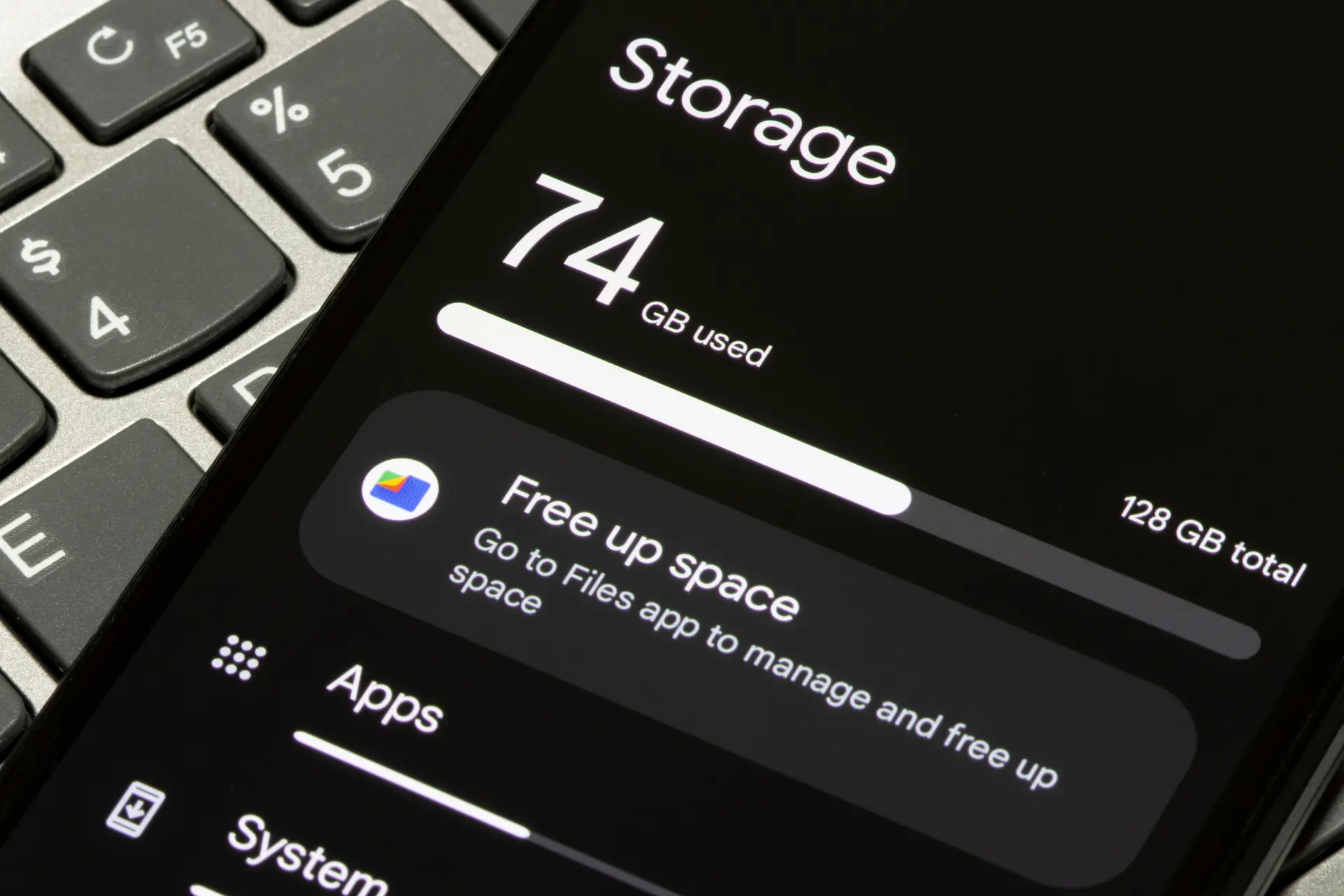
Some Android devices already include a space manager that shows what takes up the most space among apps, images, videos, and other data. This feature is very helpful for identifying files or folders that can be safely deleted.
Alternatively, there are optimization apps that allow you to:
- detect duplicate files;
- delete temporary files;
- easily manage installed apps;
- free up RAM and improve performance.
However, always remember to rely only on safe and verified tools to avoid risks to your privacy.
Periodic storage maintenance
Knowing how to free up phone storage is not enough: you need good periodic maintenance. Some tips:
- Enable automatic backup on Google Photos.
- Check the downloads folder every month.
- Regularly clear app caches.
- Consider using a cloud storage service for larger files.
- Move data you don’t need immediately to an SD card.
By following these steps, your storage will always remain under control.
In summary
The problem of full storage on smartphones affects most users. However, by learning how to free up phone storage without deleting anything important, you can continue to use your device without sacrificing your data.
Whether you choose Google Photos, a cloud storage service, an SD card, or operations such as clearing the cache, the key is to adopt a consistent method. This way, your internal memory will always be available, and your phone will run more smoothly.
Questions and answers
1. How can I free up phone storage without deleting important photos?
You can use Google Photos or another cloud storage service to save images and then delete them from internal memory.
2. What should I do if my phone’s internal memory is full?
You can move data to an SD card, clear cache and unnecessary files, or transfer multimedia content to the cloud or a PC.
3. Does clearing cache delete my personal data?
No, clearing the cache doesn’t delete photos, videos, or documents: it only frees up temporary space used by apps.
4. Which files take up the most space?
Usually videos, high-resolution photos, large apps, and operating system updates.
5. Is it useful to install apps to free up storage?
Yes, but make sure to choose reliable apps. Many Android smartphones already have built-in cleaning tools.
