Table of contents
- Why you should update your Operating System
- How to update the Windows Operating System
- How to install updates automatically
- Updates for other Microsoft products
- What to do during the update
- What to do after updating Windows
- How to configure Windows update
- Offline or manual updates
Updating the operating system is one of the most important tasks to keep your computer fast, stable, and protected from cyber threats. However, many users neglect Windows updates, postponing notifications or ignoring messages prompting them to restart the device. In reality, each software update released by Microsoft includes security fixes, performance improvements, and new features that can make your PC more efficient and secure.
In this guide, we’ll explain how to update your operating system step by step, how to configure Windows Update, how to download and install updates automatically, and what to do during the update or if problems occur.
Why you should update your Operating System
Windows updates don’t just add new features they fix vulnerabilities that could be exploited by malware or hackers. Microsoft periodically releases security patches and cumulative updates that correct bugs discovered after the operating system’s release.
A software update can also improve compatibility with new applications, drivers, and devices.
Example
A new version of Windows may make connections with printers or Bluetooth peripherals more stable, optimize energy consumption, and enhance memory management.
Moreover, after installing updates, you may notice improved performance, faster startup times, and fewer crashes or system freezes.
How to update the Windows Operating System
1. Open Windows Update Settings
To update the Windows operating system, the easiest method is through Windows Update.
Click the Start button, then the Settings icon (the gear symbol), and finally go to Update & Security.
From here, you can manage everything related to Windows updates, including the option to check for new updates.
2. Check for available Updates
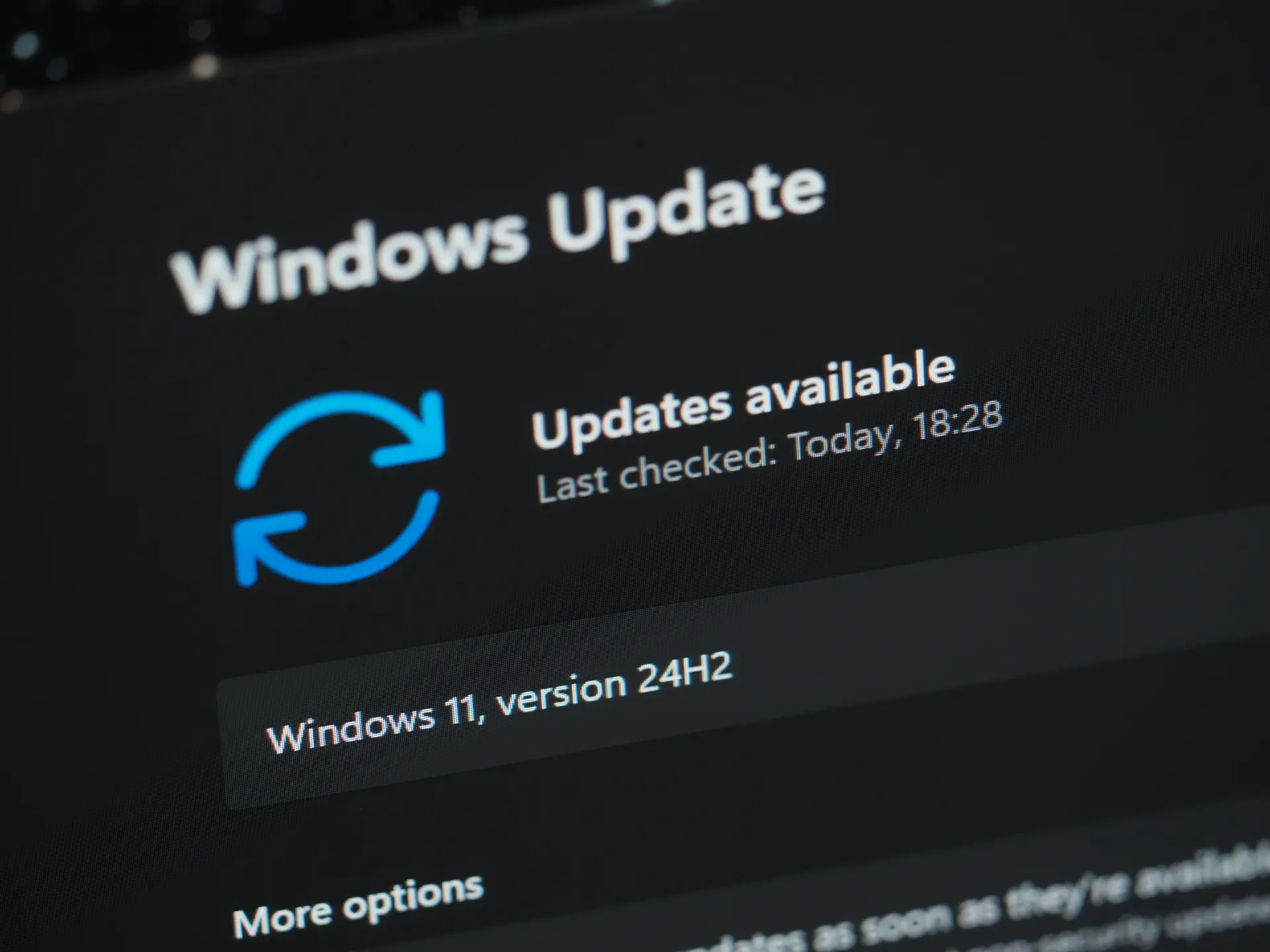
Within the Windows Update section, click the Check for updates button.
The system will scan Microsoft’s servers to see if any updates are available.
If your PC is connected to the internet, after a few minutes you’ll receive a message indicating whether new patches or versions are available. You might see messages like “Important updates are available” or “Your device is up to date.”
3. Download and install updates
Once detected, updates will appear with their respective names and identification numbers (for example, KB5030211). To proceed, click Download and install updates.
The process may take several minutes or longer for major updates.
During this phase, it may be necessary to restart the device more than once; this is perfectly normal as the system needs to complete the installation of files.
How to install updates automatically
Windows lets you install updates automatically, avoiding the need to start them manually.
To enable this feature:
- Open Settings → Update & Security → Windows Update.
- Click Advanced options.
- Turn on Automatically download updates, even for other Microsoft products.
This way, in addition to operating system updates, you’ll also get updates for Microsoft Office, Edge, and other official software.
You can also schedule a restart by setting an “active hours” window during which you don’t want the computer to restart automatically, such as during work hours. This option appears under “Pause updates” or “Active hours.”
Updates for other Microsoft products
Many users don’t realize that through Windows Update, you can also install updates for other Microsoft products.
By enabling this feature, the system will take care not only of Windows itself but also of integrated or linked applications such as Microsoft 365, Visual Studio, or OneDrive.
To enable this option:
- Go to Settings → Update & Security → Windows Update → Advanced options.
- Under “Additional updates,” activate Receive updates for other Microsoft products when you update Windows.
This ensures your entire software ecosystem stays updated and secure, reducing the risk of incompatibility or security issues.
What to do during the update
During the update, it’s important not to interrupt the process or turn off your computer. If you’re using a laptop, make sure it’s plugged in to prevent the battery from running out.
The system will display messages such as “Preparing installation,” “Do not turn off your computer,” or “Working on updates.”
At certain points, the screen may go black or show completion percentages don’t worry, this is normal.
After installation, you might need to restart the PC several times. Once finished, Windows will show a message like “Updates completed successfully.”
What to do after updating Windows
After installing updates, check that everything is working correctly. Open your main applications, verify your internet connection, and ensure that printers or peripherals are recognized.
It’s also a good idea to reopen Windows Update and check for additional updates, since some are released in multiple stages.
For extra protection, review your antivirus and Windows Security status:
go to Settings → Update & Security → Windows Security and confirm that all sections are marked as “Protected.”
How to configure Windows update
The Windows Update settings allow you to customize how updates are managed. You can choose to:
- Download and install updates automatically
- Pause updates temporarily (for up to 35 days)
- View your update history
- Uninstall a problematic update
For users running Windows 10 or Windows 11 in enterprise environments, network administrators can centrally manage update policies using Group Policy or Microsoft Intune.
Offline or manual updates
If your PC doesn’t have internet access or you encounter problems with Windows Update, you can manually download update packages from Microsoft’s official site:
- Visit the Microsoft Update Catalog page.
- Enter the KB code of the update you want to install.
- Click Download, then run the file to install it manually.
This method is also useful if the automatic installation fails or if you need to update multiple devices on a network.
Conclusion
Knowing how to update your operating system means protecting your computer, your data, and your privacy. Windows updates are not just a technical requirement they’re an investment in digital security.
With just a few clicks on the Check for updates button, you can keep your PC aligned with the latest technologies and minimize the risk of vulnerabilities.
If you set Windows Update to download and install updates automatically, you’ll never have to worry about it again the system will handle everything, including sending a notification when a restart is required.
