Table of contents
- What is cache and why it can cause problems
- When it’s really necessary to clear the cache
- How to clear browser cache step by step
- Difference between cache and drowsing history
- Can you clear cache automatically?
- Cache and performance: advantages and disadvantages
- Cache and web development: an often overlooked aspect
Have you ever opened a website and seen an outdated version, with images not updating or a completely broken layout?
Or noticed that pages take too long to load, even though your connection is fast?
Have you ever made a change to your website and not seen it applied, as if the browser “refused to cooperate”?
If you recognize yourself in any of these situations, the problem is most likely related to the cache. The good news is that there is a simple, fast, and accessible solution: how to clear cache.
In this article, I will guide you step by step to understand what cache is, why it matters, and most importantly how to clear cache in the main browsers, in a clear and practical way.
What is cache and why it can cause problems
When you browse the internet, your browser automatically stores a series of images and files to speed up future loading times. These are called cached files.
In theory, this is an advantage: cache reduces loading times and improves the user experience.
However, in practice, it can become a problem.
For example:
- The browser keeps showing an outdated version of a website
- Some elements do not update correctly
- Display errors may occur
- Recent changes are not visible
This happens because, instead of downloading updated content, the browser uses the data it has already stored.
That’s why sometimes it is necessary to clear the cache.
When it’s really necessary to clear the cache
You don’t need to do it every day, but there are situations where it’s essential to know how to clear your browser cache.
For example:
- When a website doesn’t load properly
- After updating a website
- When images or content appear outdated
- In case of unusual errors or abnormal behavior
In these cases, clearing the cache allows the browser to download all updated data again.
How to clear browser cache step by step
Let’s now look in practical terms at how to clear cache in the main browsers.
How to clear cache in Google Chrome
For Google Chrome, the process is very simple:
- Click on the three dots in the top right
- Go to “Settings”
- Select “Privacy and security”
- Click on “Clear browsing data”
- Choose the time range to delete (e.g., “All time”)
- Check “Cached images and files”
- Click on “Clear data”
This process removes all cached files and solves most common issues.
If you want a more technical and authoritative reference, you can consult the official Google guide on how to clear cache for Chrome, Android, iPhone, and iPad.
How to clear cache in Mozilla Firefox
On Mozilla Firefox, follow these steps:
- Click on the three lines in the top right
- Go to “Settings”
- Select “Privacy & Security”
- In the “Cookies and Site Data” section, click on “Clear Data”
- Select “Cached Web Content”
- Confirm
Alternatively, you can use “History” and then “Clear recent history” for a more complete action.
How to clear cache in Microsoft Edge
For Microsoft Edge, the procedure is similar:
- Click on the three dots in the top right
- Go to “Settings”
- Select “Privacy, search, and services”
- In the “Clear browsing data” section, click on “Choose what to clear”
- Select “Cached images and files”
- Click on “Clear now”
How to clear cache in Safari
If you use Apple devices, knowing how to clear browser cache in Safari is essential to fix display issues and improve website loading times.
On Mac, the process requires an initial step. Open Safari, click on “Safari” in the top menu, then “Settings” (or “Preferences”). Go to the “Advanced” tab and enable “Show Develop menu in menu bar”. A new “Develop” menu will appear. Click it and select “Empty Caches”. This quickly removes all cached files without affecting passwords or sensitive data.
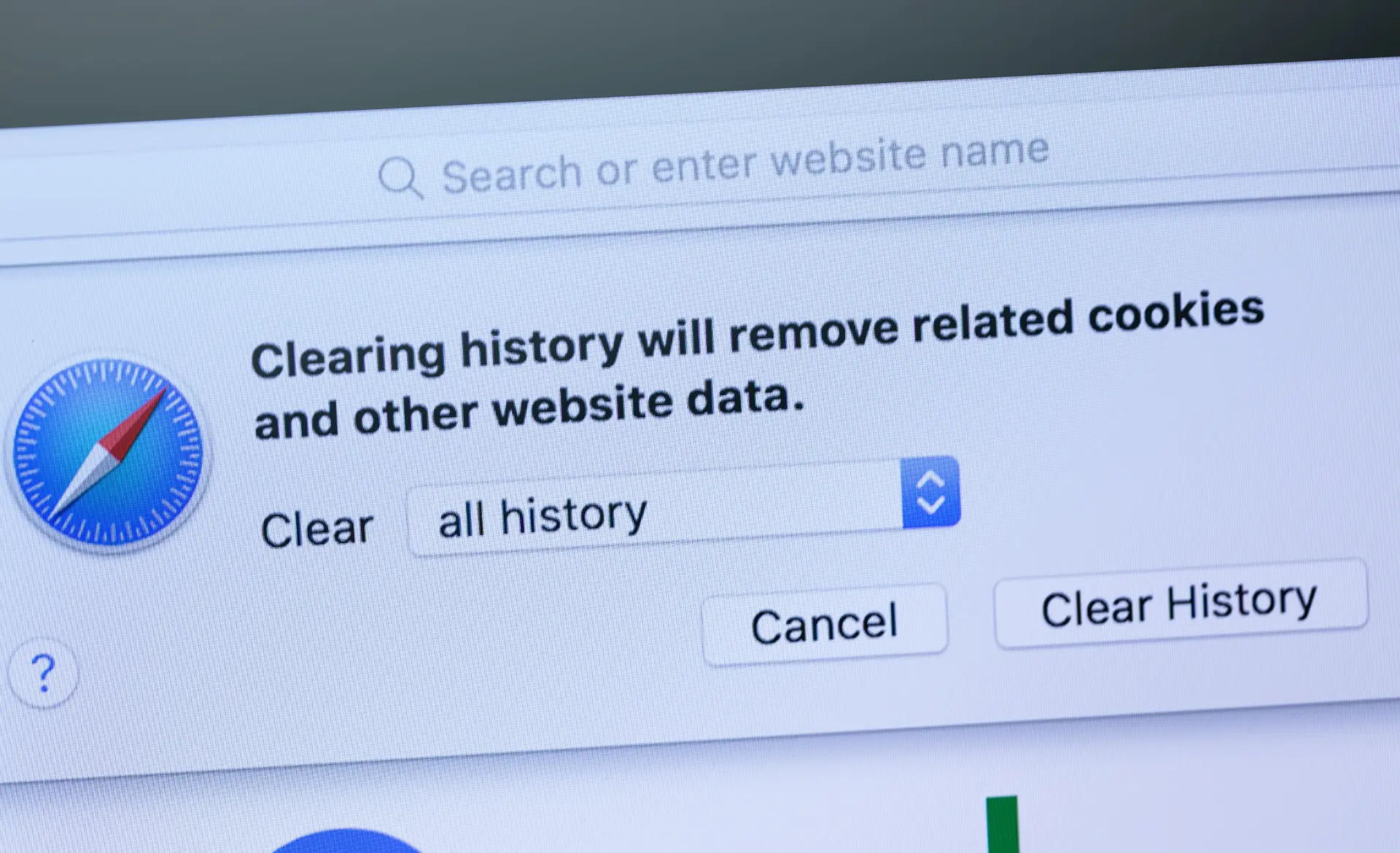
If you want a more complete cleanup, you can also clear browsing history by going to “History” > “Clear History” and selecting the time range. This will also remove cookies and website data.
On iPhone and iPad, the process is even simpler: go to Settings > Safari > “Clear History and Website Data”. This clears both cache and browsing history.
Knowing how to clear cache in Safari helps keep your browser fast, updated, and free from loading errors.
Difference between cache and drowsing history
Many users confuse cache with browsing history, but they are two different things.
- Cache contains temporary files such as images and scripts
- Browsing history contains the list of visited websites
When you choose to clear browsing history, you can also decide whether to remove:
- cookies
- saved passwords
- website data
- browser cache
That’s why it’s important to always check what you are deleting.
Can you clear cache automatically?
Yes, and it can be a very useful strategy.
You can configure some browsers to:
- delete data automatically when closing
- use incognito mode
- limit the amount of stored data
Example
Some browsers allow you to set automatic deletion every time you close them, improving both privacy and security.
Cache and performance: advantages and disadvantages
Cache is not the enemy.
In fact, it is essential for:
- reducing loading times
- improving user experience
- lowering bandwidth usage
However, if not managed properly, it can cause:
- display errors
- update issues
- content inconsistencies
The key is to find the right balance: don’t clear it all the time, but know when it’s the right moment to do so.
Cache and web development: an often overlooked aspect
If you work on a website, knowing how to clear browser cache becomes even more important.
During development or SEO optimization, cache can:
- hide recent changes
- distort performance tests
- create confusion during debugging
A practical tip: frequently use “hard refresh” (CTRL + F5) or developer tools to bypass the cache.
Conclusion
Understanding how to clear cache is not just a technical skill, but a practical ability that can save you time, prevent errors, and improve your online experience.
The next time a website doesn’t work as expected, instead of wasting time on ineffective attempts, remember this simple action.
Sometimes, the most effective solution is also the simplest: clearing the cache.
Questions and answers
- How can I clear cache quickly?
You can use the shortcut CTRL + SHIFT + DELETE to directly access the data clearing screen. - Does clearing cache delete passwords?
No, unless you also select the option to remove saved passwords. - How often should I clear cache?
Only when you experience issues or after making important changes to a website. - Does cache slow down the computer?
No, it usually speeds things up. It becomes a problem only when it is outdated. - Can I clear cache on a smartphone?
Yes, the process is similar and can be found in the browser settings on mobile devices.